HTML Links, JS Functions, and Intro to CSS Layout
Links:
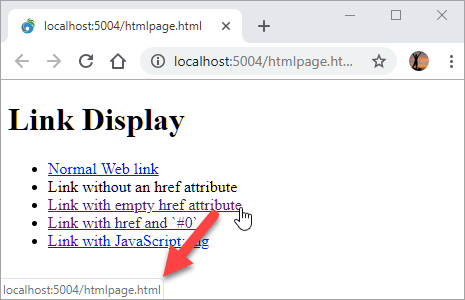
HTML links are hyperlinks.
You can click on a link and jump to another document.
When you move the mouse over a link, the mouse arrow will turn into a little hand.
Exampe:
<a href="url">link text</a>
HTML Links - The target Attribute
By default, the linked page will be displayed in the current browser window. To change this, you must specify another target for the link.
The target attribute specifies where to open the linked document.
The target attribute can have one of the following values:
- _self - Default. Opens the document in the same window/tab as it was clicked
- _blank - Opens the document in a new window or tab
- _parent - Opens the document in the parent frame
- _top - Opens the document in the full body of the window
Absolute URLs vs. Relative URLs
Both examples above are using an absolute URL (a full web address) in the href attribute.
A local link (a link to a page within the same website) is specified with a relative URL (without the “https://www” part):
Example
<h2>Absolute URLs</h2>
<p><a href="https://www.w3.org/">W3C</a></p>
<p><a href="https://www.google.com/">Google</a></p>

<h2>Relative URLs</h2>
<p><a href="html_images.asp">HTML Images</a></p>
<p><a href="/css/default.asp">CSS Tutorial</a></p>
Link to an Email Address:
Use mailto: inside the href attribute to create a link that opens the user’s email program (to let them send a new email):
Example
<a href="mailto:someone@example.com">Send email</a>
CSS Layout
The position Property:
!()[https://www.csssolid.com/images/csspositions/css-position-all.png]
The position property specifies the type of positioning method used for an element (static, relative, fixed, absolute or sticky).
| nom | Position Property | Nots |
|---|---|---|
| 1. | static | HTML elements are positioned static by default, Static positioned elements are not affected by the top, bottom, left, and right properties. |
| 2. | relative | An element with position: relative; is positioned relative to its normal position. |
| 3. | fixed | An element with position: fixed; is positioned relative to the viewport, which means it always stays in the same place even if the page is scrolled. The top, right, bottom, and left properties are used to position the element, A fixed element does not leave a gap in the page where it would normally have been located. |
| 4. | absolute | An element with position: absolute; is positioned relative to the nearest positioned ancestor (instead of positioned relative to the viewport, like fixed), However; if an absolute positioned element has no positioned ancestors, it uses the document body, and moves along with page scrolling. |
| 5. | sticky | An element with position: sticky; is positioned based on the user’s scroll position. |
Example:
div {
  position: static;
  border: 3px solid #73AD21;
}
The z-index
When elements are positioned, they can overlap other elements.
The z-index property specifies the stack order of an element (which element should be placed in front of, or behind, the others).
JS
Functions, Methods, and Objects”.
JavaScript Functions:
A JavaScript function is a block of code designed to perform a particular task, javaScript function is executed when “something” invokes it (calls it)
JavaScript Function Syntax
Examle
function name(parameter1, parameter2, parameter3) {
  // code to be executed
}
JavaScript Object
Object is a non-primitive data type in JavaScript. It is like any other variable, the only difference is that an object holds multiple values in terms of properties and methods. Properties can hold values of primitive data types and methods are functions.
Syntax
var <object-name> = { key1: value1, key2: value2,... keyN: valueN};
You must specify key-value pair in object for properties or methods. Only property or method name without value is not valid. The following syntax is invalid.
JavaScript Object Methods
JavaScript methods are actions that can be performed on objects.
A JavaScript method is a property containing a function definition.
Access JavaScript Object Properties & Methods:
Example
var person = {
                firstName: "James",
                lastName: "Bond",
                age: 25,
                getFullName: function () {
                    return this.firstName + ' ' + this.lastName
                }
            };

person.firstName; // returns James
person.lastName; // returns Bond

person["firstName"];// returns James
person["lastName"];// returns Bond

person.getFullName();